
ADHD visual timer
A visual timer for ADHD, on your Windows desktop
A visual timer shows time running out instead of asking you to keep track of it. If you work at a Windows PC, the most useful place for one is the taskbar: NextUp Alert turns its icon into a countdown to your next meeting that changes colour from green to yellow to red as it gets close. Here is how that compares with a desk timer or a Pomodoro app, and when you would want each.
Free · Windows 10 and 11 · Google Calendar or Microsoft 365
Why visual timers come up so often with ADHD
Many people with ADHD describe time as something they cannot feel passing — ten minutes and forty minutes register much the same until the moment is suddenly over. A visual timer swaps that internal estimate for something you can see.
It is a mainstream suggestion, not a fringe one. An occupational therapist writing for CHADD, the US ADHD organisation, lists “timers and alarms (visual timers such as the Time Timer)” among strategies for time blindness at work, alongside visual schedules and alerts for meetings. CHADD also runs a webinar on teaching adults to “see” time by externalising it — which is exactly what a visual timer does.
If you want a number for how far your own sense of time drifts, try the time blindness test. It is not a diagnosis, but it is a useful baseline.
The kinds of visual timer, and what each is good at
A physical desk timer
The best known is the Time Timer, which uses a red disk that disappears as time elapses. Nothing to install, and it works away from the screen. You have to remember to set it, and it does not know when your next meeting is.
A timer app on your phone
Time Timer also makes an app for iOS and Android, and planners such as Tiimo include a focus timer. Portable and flexible — but a phone face-down on the desk is easy to stop seeing.
A Pomodoro or focus timer
Windows has one built in: Focus in the Clock app shows a session timer and turns on Do Not Disturb. Good for one block of work; it times the block, not the gap before your next commitment.
A countdown in the taskbar
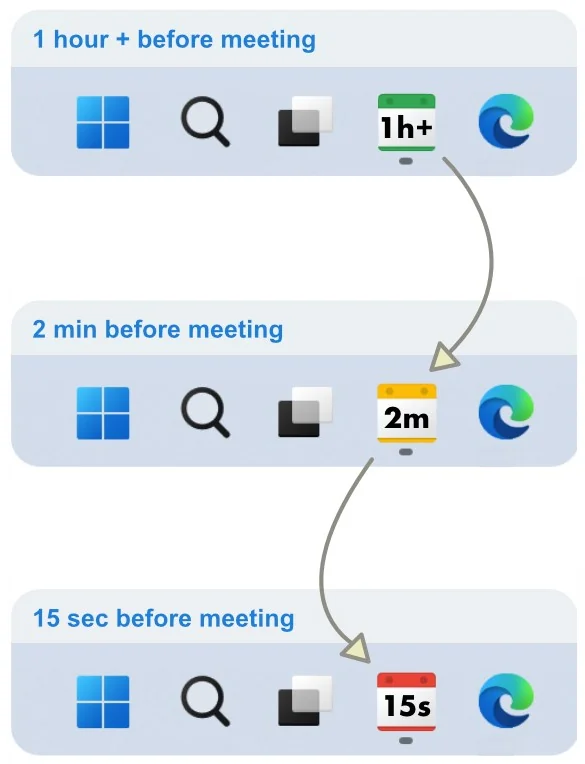
What NextUp Alert does. It counts down to the next event on your calendar, so it starts itself and is always aimed at something with a fixed time. It is not a timer you set for twenty-five minutes.
The taskbar as a visual timer for meetings
The Windows taskbar is the one strip of screen that full-screen documents, browser tabs and spreadsheets do not cover. Put the countdown there and you can read it from the corner of your eye without switching windows.
- Green while you have time — tens of minutes or more.
- Yellow when minutes remain: the cue to stop starting things.
- Red in the final seconds, by which point the pop-up is up.
- Counts in hours, then minutes, then seconds, so it stays readable at a glance.
- You choose the thresholds, so yellow can arrive as early as you need it.
- Once a meeting starts, the icon can count down the time left in it.
Visual timer options compared
| What it counts down to | Who starts it | Where you see it | |
|---|---|---|---|
| Physical desk timer | Whatever duration you set | You, every time | On the desk |
| Phone timer app | Whatever duration you set | You, every time | On your phone |
| Windows Focus session | The end of a work block | You, every time | On screen, in the Clock app |
| NextUp Alert | Your next calendar event | Your calendar | The Windows taskbar, always |
The column that matters most for ADHD is the middle one. A timer you have to remember to start fails on exactly the days you need it.
Using a desk timer and a taskbar countdown together
They do different jobs, so many people end up with both. A desk timer or a focus session is for the block you are in: “twenty-five minutes on this report”. The taskbar countdown is for the edge of that block: “the stand-up is in eighteen minutes, whatever you are doing”.
A setup that works for a lot of desk days:
- Focus blocks on a timer you set. Short ones, so the end arrives before the meeting does.
- Meetings on the taskbar. The countdown runs whether or not you remembered to start anything.
- A spoken warning for the hard transitions. NextUp Alert’s free voice announces the countdown out loud — “Event starts in 2 minutes” — which reaches you when your eyes are elsewhere. Reading the meeting title aloud is a paid AI extra.
- Your own calendar blocks for non-meetings. Because the countdown follows your calendar, an event you add yourself — “leave for the school run” — gets the same treatment as a meeting, unless you have filtered it out.
One caution if you use Windows Focus: it turns on Do Not Disturb, which silences notifications for the session. Check that your meeting reminders still reach you before you rely on it for a long block.
What a visual timer will not do
It will not make the transition for you. Seeing yellow is the signal; standing up is still the hard part, and that is where layered warnings help — more on that in getting out of hyperfocus before a meeting. And a timer is not treatment: this page is not medical advice, and if ADHD is affecting your work, a qualified professional is the right person to talk to.
For the bigger picture — what to look for in an app when time blindness is the main problem — see choosing an ADHD app for time blindness.
Time Timer is a trademark of its owner. NextUp Alert is not affiliated with, endorsed by or sponsored by Time Timer or any other product named here.
A visual timer that starts itself
Free on the Microsoft Store. Connect your Google or Microsoft calendar and the taskbar does the rest.