
Fix guide
Teams meeting reminders not popping up? There is no reminder to fix
Microsoft Teams has never had an advance meeting reminder. Its notification settings contain exactly one meeting toggle — “Meeting start notifications” — and it fires as the meeting begins, not before it. The fifteen-minute warning you remember came from Outlook, which is why it disappeared when your Outlook did.
Teams on Windows 10 and 11 · Work, school and personal accounts
What Teams actually sends you
Almost every “my Teams reminders stopped” report comes down to confusing these two things, which are produced by two different programs.
Teams: the start notification
A banner as the meeting starts, with a Join button. On or off, and nothing else — there is no field for “remind me 15 minutes before”, because Teams does not have one. Microsoft’s own notification settings documentation lists every meeting option, and advance timing is not among them.
Outlook: the actual reminder
The pop-up that warns you beforehand belongs to the calendar item, and Outlook is what fires it. Schedule a Teams meeting and the invitation lands in your Outlook calendar carrying a reminder — so the alert you think of as a Teams reminder has always been Outlook doing the work.
This is not a bug you can configure your way out of. A Microsoft moderator confirmed in March 2025 that meeting reminders are “not available as a built-in feature” in Teams, and closed the thread pointing users at the feedback portal. The request has been open for years.
So why did yours stop?
If you used to get a warning and now you do not, something changed on the Outlook side or in the way you work. These are the six causes, most common first.
-
You moved to new Outlook
New Outlook has no reminders window of its own — it hands everything to Windows notifications. Its Calendar notification style can be set to “Desktop” (a toast that slides away in seconds) or “None”, and it now dismisses reminders for past events automatically. Any of those and the warning is gone. Both settings live in Settings → General → Notifications, and the full walkthrough is on Outlook reminders not popping up.
-
You live in Teams and never open Outlook
This is the one that catches people who switched to a Teams-first way of working. Classic Outlook only fires reminders while it is running; closed means silence, by design. Teams itself does not pick up the slack, so a day spent entirely in Teams is a day with no advance warning for anything.
-
The start notification is switched off
It will not warn you early, but it is better than nothing. In Teams go to Settings → Notifications and activity → Meetings and turn on “Meeting start notifications”. While you are there, check “Play sounds with incoming calls, requests to join, and meeting start notifications” — a silent banner behind a full-screen window is a banner you will not see.
-
Do not disturb is on — in Teams or in Windows
Setting your Teams presence to Do not disturb suppresses meeting notifications along with everything else, and it can be set automatically by a focus session or by a calendar event. Windows has its own switch: press Win+N and check the moon icon. Being marked Offline has been reported to stop notifications too.
-
You are using Teams in a browser
The Teams web client has deliberately limited notification support, and a background tab is at the mercy of the browser. If notifications matter, use the desktop app.
-
It is a channel meeting you were not individually invited to
Channel meetings live on the channel calendar. Unless you were added to the invitation yourself, there is no event in your personal calendar — so there is nothing for Outlook, or any other app, to remind you about. The same is true of ad-hoc “Meet now” calls, which have no calendar entry at all.
Every Teams meeting notification setting, in one place
Settings → Notifications and activity. This is the complete list for meetings — worth seeing in full, because the thing most people come looking for is not in it.
- Meeting start notifications. On or off. Fires at the start time.
- Show meeting join bar. Adds a persistent Join bar in the Teams window while a meeting is running.
- Meet now start notifications. On or off, for ad-hoc calls.
- Meeting chat notifications. Separate controls for meetings you accepted and meetings you have not answered — the second is muted until you join by default.
- Sound. Under Notifications and activity → Sound. Choose whether notifications play a sound and pick from the built-in set; custom sounds are available on Teams for Windows and the web. There is no separate reminder sound, because there is no reminder.
- No timing control anywhere. You cannot set five minutes, or fifteen, or an hour. If you have found a “reminder” dropdown, you are in the Outlook calendar item, not in Teams settings — and that is the right place to set one.
Setting the reminder on the invitation is the free answer, and if you keep Outlook open all day it may be enough. It is still a single pop-up that fires once and can be dismissed by reflex.
The permanent fix
Get a warning that does not depend on Teams having one
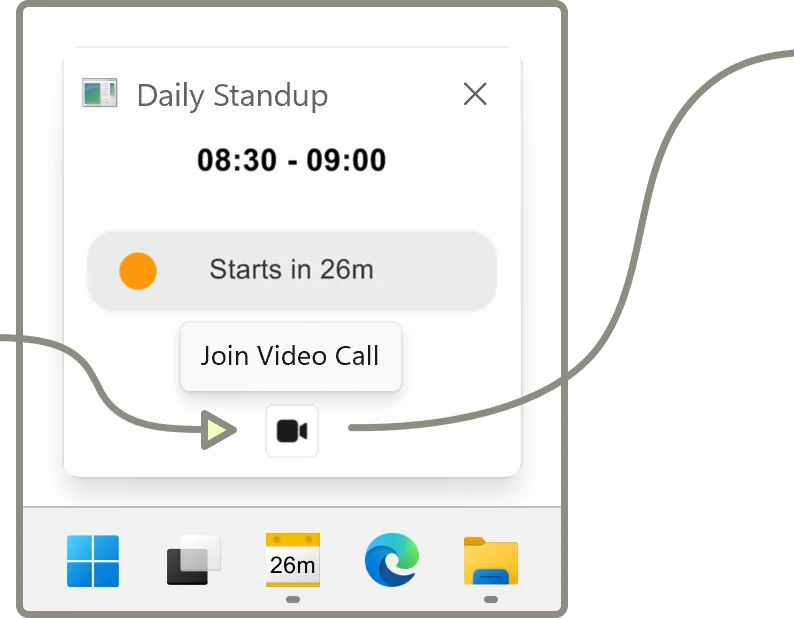
NextUp Alert reads the same Microsoft 365 calendar your Teams meetings already land in, and warns you itself. Because it is a desktop app in the system tray rather than a feature of Teams or a tab you have to leave open, it does not matter which app you are living in that day.
- A colour-coded countdown in the taskbar — green while you have time, yellow as the minutes run down, red at the end
- Pop-ups that overlay every window, including full-screen apps and screen shares
- A spoken countdown to the start, so you hear it without looking
- The Teams link pulled out of the invitation, so joining is one click
- Keeps working with Outlook and Teams both closed
What it cannot do
Worth saying plainly, because no app on this search results page will tell you: a reminder needs an event to remind you about.
- Channel meetings you were not invited to individually never reach your personal calendar, so nothing can warn you about them. Ask the organiser to invite you directly.
- Ad-hoc “Meet now” calls are not scheduled, so there is no time to count down to. Teams’ own start notification is the only warning that exists.
- A managed work account may need your IT administrator to approve calendar access before any third-party app can read it. Microsoft now requires admin consent for Outlook calendar permissions on tenants using the default consent policy. A personal Microsoft or Google account is unaffected.
Common questions
How do I set a Teams meeting reminder for 15 minutes before?
Not in Teams — the setting does not exist there. Open the meeting in your Outlook calendar and use the Reminder dropdown on the event, which is what generates the advance pop-up. To change it for everything, set a default reminder time: File → Options → Calendar in classic Outlook, or Settings → Calendar → Events and invitations in new Outlook.
Why do I get a reminder for some meetings but not others?
Because the reminder travels with the invitation. Some external organisers send invitations with the reminder set to None, and channel meetings you were not individually invited to never create a personal calendar entry at all. Open the event and set a reminder yourself, or use an app that warns you about every event regardless of what the organiser chose.
Why does the same Teams meeting reminder keep popping up?
That is usually the opposite problem — several things reminding you at once. Outlook fires the calendar reminder, Teams fires its start notification, and a Zoom or Webex add-in may add a third. Reminders also repeat if they are never dismissed, and Teams can notify you about a meeting you are already sitting in. Turn off the duplicates you do not need rather than all of them.
Do I need Outlook open to get Teams meeting reminders?
With classic Outlook, yes — it only fires reminders while it is running. New Outlook can notify you while closed if “Send notifications when Outlook is closed” is on and Windows allows it to run in the background. A tray app such as NextUp Alert reads the calendar itself, so neither Outlook nor Teams needs to be open.
Is there a Teams app that adds meeting reminders?
The reminder apps in the Teams store are mostly bots that post a message in a chat or channel — built for nudging other people about a meeting, not for making sure you personally notice one. They arrive as another Teams notification, which is the thing you are already missing. A desktop app that shows a countdown outside Teams solves a different problem.
Stop waiting for Teams to add reminders
NextUp Alert puts a live countdown to your next Teams meeting in the Windows taskbar, and keeps working with Teams and Outlook closed. Free on the Microsoft Store.
Windows 10 and 11 · Works with Outlook and Microsoft 365 · No account required