
Fix guide
Outlook reminders not popping up? Eight fixes that work
Outlook reminders stop appearing for a short list of predictable reasons: a setting that switched itself off, Windows holding the notification back, or Outlook simply not running. Work through the fixes for your version below — and if you would rather never do this again, there is a permanent option at the end.
Classic and new Outlook · Windows 10 and 11
First, check which Outlook you have
The two versions of Outlook remind you in completely different ways, so the fixes are different too.
Classic Outlook
Has a File menu in the top-left corner. It draws its own reminders window, so the settings that matter live under File → Options.
New Outlook
No File menu. It has no reminders window of its own — it relies entirely on Windows notifications, so both its own settings and the Windows ones must be right.
If you use classic Outlook
-
Turn “Show reminders” back on
Go to File → Options → Advanced, scroll to the Reminders section and tick “Show reminders” (and “Play reminder sound” if you want the chime). Updates and profile changes are known to flip this off. If the box is greyed out, a group policy from your IT department controls it — only they can change it. This is Microsoft’s own first fix in “Reminders in Outlook do not appear”.
-
Make reminders open on top of other windows
If the reminder sound plays but you never see the window, it is opening behind whatever you are working on. On the same File → Options → Advanced screen, tick “Show reminders on top of other windows”. Note the catch: this option only exists in Microsoft 365 versions of classic Outlook — perpetual Outlook 2019 and 2021 do not have it at all.
-
Keep Outlook running
Classic Outlook only fires reminders while it is open. Minimised is fine; closed means silence. If you close Outlook to concentrate, its reminders go with it — that one is by design, and no setting changes it.
-
Rebuild the reminders queue
If reminders fire for new events but not old ones, the stored queue is corrupt. Close Outlook, press Win+R and run “outlook.exe /cleanreminders” — Microsoft’s documented switch that clears and regenerates reminders. (You may see “/resetreminders” recommended in forums; that switch does not exist.)
If you use new Outlook
-
Set the notification style to “Reminder”
Open Settings (the gear) → General → Notifications, expand Calendar and make sure it is on. Then check the style dropdown: “Reminder” keeps the alert on screen until you deal with it, “Desktop” is a toast that slides away in seconds, and “None” silently turns reminders off. Many “my reminders vanished” reports come down to this one dropdown.
-
Stop past reminders dismissing themselves
On the same screen, untick “Automatically dismiss reminders for past events”. It has been on by default since a 2025 update, which is why reminders for meetings that started while you were away now disappear without a trace.
-
Let Windows actually show them
New Outlook reminders are Windows notifications, so Windows can block them wholesale. Go to Start → Settings → System → Notifications: turn notifications on, find “Outlook (new)” in the sender list, allow it, and enable its banners. See Microsoft’s “Outlook notifications aren’t working” for the full checklist.
-
Let it remind you while closed
By default, closing new Outlook stops its reminders. In Settings → General → Notifications turn on “Send notifications when Outlook is closed”, and in Windows Settings → Apps → Installed apps → Outlook (new) → Advanced options set background permission to Always.
Whichever Outlook you use
Three Windows-side settings silence reminders from either version, and two calendar quirks catch people out:
- Do not disturb. Press Win+N and check the moon icon — if it is on, reminders land straight in the notification centre without appearing. Focus sessions and battery saver can do the same.
- Teams status. Setting yourself to Do not disturb in Teams suppresses meeting notifications there too.
- The default reminder time. If events arrive with no reminder at all, set a default: File → Options → Calendar → “Default reminders” in classic, or Settings → Calendar → Events and invitations in new Outlook.
- Other people’s meetings. Invitations from some external organisers arrive with the reminder set to None. Open the event and set one yourself.
- Shared calendars. Classic Outlook does not fire reminders for most shared and delegated calendars — that is a product limitation, not a broken setting.
The permanent fix
Stop depending on the reminder window
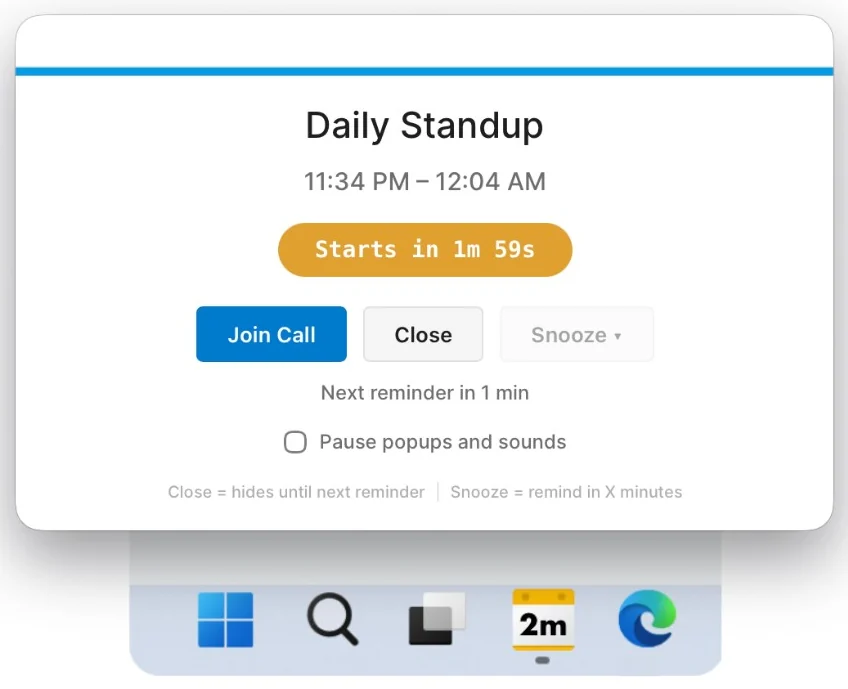
Every fix above shares a weakness: it restores a single popup that fires once, can be dismissed in a reflex, and depends on Outlook being open and on Windows letting it through. NextUp Alert reads the same Microsoft 365 calendar directly and takes a different approach — it keeps the time remaining in front of you instead.
- A colour-coded countdown in the taskbar, visible the whole way down
- Popups that overlay every window, including full-screen apps
- Spoken announcements that count down to the start
- Works with Outlook completely closed — nothing above needs to be fixed
Common questions
Do Outlook reminders work when Outlook is closed?
Classic Outlook: no — reminders only fire while it is running. New Outlook: only if “Send notifications when Outlook is closed” is on and Windows allows it to run in the background. A tray app such as NextUp Alert avoids the problem entirely, because it reads the calendar itself and does not need Outlook open.
Why do my reminders play a sound but never appear?
In classic Outlook that almost always means the reminders window is opening behind your other windows — turn on “Show reminders on top of other windows” (Microsoft 365 versions only). In new Outlook, check that banners are enabled for “Outlook (new)” in Windows notification settings and that Do not disturb is off.
Why did my reminders disappear after switching to new Outlook?
Two settings usually explain it: the Calendar notification style may be “None” or “Desktop” rather than “Reminder”, and “Automatically dismiss reminders for past events” is on by default, so anything that fired while you were away removes itself. Both live in Settings → General → Notifications.
Is this the same as “Outlook calendar notifications not working”?
Usually yes. New Outlook delivers calendar reminders as Windows notifications, so both phrases describe the same failure and the fixes above cover it. One thing to separate out: if it is new email alerts you have lost rather than meeting reminders, that is a different setting — Settings → General → Notifications → Mail — and nothing on this page will bring it back. Missing Google Calendar notifications are a different problem again; see Google Calendar notifications not working. And if it is Teams meeting reminders that never pop up, none of these settings apply — Teams has no advance reminder to restore.
Never lose another Outlook reminder
NextUp Alert puts a live countdown in your taskbar and keeps working with Outlook closed. Free on the Microsoft Store.
Windows 10 and 11 · Works with Outlook and Microsoft 365 · No account required