
Fix guide
Google Calendar notifications not working? Nine fixes
Google Calendar notifications are delivered by your browser, so there are three separate places they can be switched off: the calendar, the browser and Windows itself. Work through the nine below in order — and if you would rather your reminders did not depend on a browser at all, there is a permanent option at the end.
Chrome, Edge and Firefox · Windows 10 and 11
The cause that is not a setting
Before changing anything, know the rule that explains most of these reports: Google Calendar can only notify you while it is open in a browser tab. It is a web page, so when the tab is closed — or the browser is restarted after an update, or the machine wakes from sleep with the session dropped — nothing fires, and no setting on this page changes that. Minimised is fine. Closed is silence.
If your notifications stopped on a day you closed some tabs, that is almost certainly the whole story. If the tab genuinely is open, work through the nine fixes.
In Google Calendar’s own settings
-
Turn desktop notifications back on
Open the gear icon → Settings → General → Notification settings, and check the dropdown. It has three positions: Off, Desktop notifications (a toast outside the browser window) and Alerts (a box inside the Google Calendar window). If it reads Off, nothing else on this page matters. See what alerts and desktop notifications actually mean for which of the two to pick.
-
Give each calendar its own default notification
Notification defaults are set per calendar, not once for the account. In Settings, choose a calendar under “Settings for my calendars” and check Event notifications and All-day event notifications. A calendar with an empty list produces silent events forever. Repeat for every calendar you actually care about — a shared team calendar has its own settings and does not inherit yours.
-
Check the event itself has a notification
If one meeting is silent while the rest are fine, open it and look at the Notifications field. Invitations from external organisers often arrive with no notification at all, and adding one to your copy of the event fixes only that event.
In your browser
-
Let calendar.google.com send notifications
Google Calendar asks permission once, and a reflexive “Block” is permanent and silent. In Chrome go to Settings → Privacy and security → Site settings → Notifications and confirm calendar.google.com sits under “Allowed to send notifications”. If it is missing entirely, use Add to put it there. Edge and Firefox have the same list under their own site-permission screens.
-
Let it play a sound
If notifications appear but arrive silently, sound is a separate permission: Chrome Settings → Privacy and security → Site settings → Additional content settings → Sound, with calendar.google.com under “Allowed to play sound”. This is Google’s own documented step in “Troubleshoot missing Google Calendar notifications”.
-
Check which Google profile has the tab
Notifications come from the browser profile with the calendar open. If you are signed into a personal and a work Google account in two Chrome profiles, the work calendar can only notify you from the work profile — and it is easy to have the wrong one open all day without noticing.
In Windows
-
Let Windows show your browser’s notifications
A browser notification is a Windows notification, so Windows can block the lot. Go to Start → Settings → System → Notifications, make sure notifications are on, find Google Chrome (or your browser) in the sender list, allow it, and check that its banners are enabled. Allowed-but-no-banner is the setting that sends reminders straight to the notification centre where you never see them.
-
Turn off Do not disturb
Press Win+N and look for the moon icon. If Do not disturb is on, reminders are delivered silently to the notification centre and never appear. Focus sessions and battery saver suppress them the same way.
-
Check the full-screen rule
Windows hides notifications while you are in a full-screen app — which includes presenting, screen-sharing and most video calls, exactly when a “your next meeting starts now” reminder matters most. On Windows 11 it is Settings → System → Notifications → Turn on do not disturb automatically; on Windows 10 the same rules live under Settings → System → Focus assist.
The permanent fix
Stop routing reminders through a browser
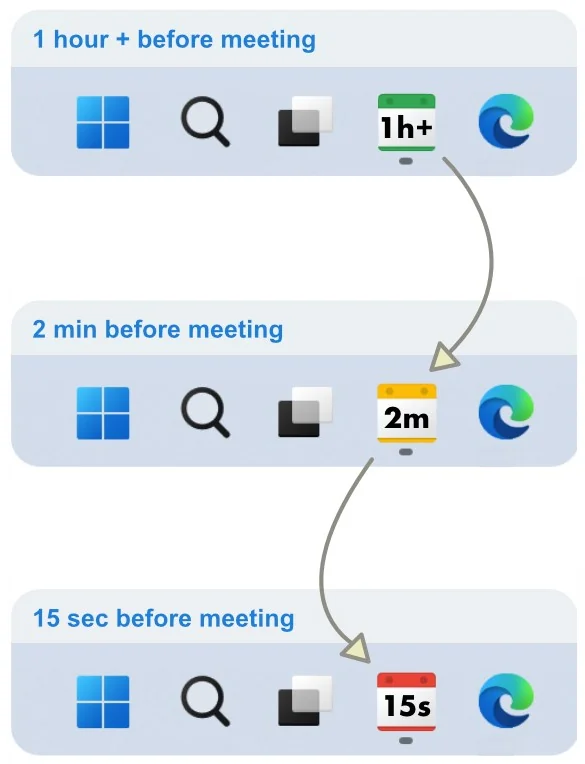
Every fix above restores the same fragile thing: a toast that fires once, vanishes in seconds, and only works while the right browser profile has the right tab open. NextUp Alert connects to the same Google account and takes a different approach — it keeps the time remaining in front of you instead.
- A colour-coded countdown in the taskbar, visible the whole way down
- Popups that overlay every window, including full-screen apps
- Spoken announcements that count down to the start
- Works with every browser window closed — nothing above needs to be fixed
Common questions
Do Google Calendar notifications work when the browser is closed?
No. Google Calendar is a web page, so it can only notify you while it is open in a tab — minimised is fine, closed is not. That is the design, not a fault, and no setting changes it. A Windows tray app such as NextUp Alert avoids the problem because it reads the calendar itself and needs no browser open.
Why do my notifications appear and then vanish before I read them?
Windows toasts auto-dismiss after a few seconds and drop into the notification centre. Switching from “Desktop notifications” to “Alerts” in Google Calendar keeps the message on screen until you dismiss it, but only inside the calendar window — so you have to be looking at the tab. There is more detail on alerts versus desktop notifications.
Why does one calendar notify me and another does not?
Because notification defaults belong to each calendar individually. Open Settings → Settings for my calendars, pick the quiet calendar and add an entry under Event notifications. Shared and subscribed calendars are the usual culprits — they arrive with nothing set.
Is there a Google Calendar app for Windows that notifies me properly?
Google publishes no official Google Calendar desktop app for Windows, so the choice is between a browser tab, a wrapper app and a dedicated reminder app that reads your calendar. The trade-offs are set out in Google Calendar desktop app options.
Using Outlook as well? See Outlook reminders not popping up.
Never miss another Google Calendar event
NextUp Alert puts a live countdown in your taskbar and keeps working with every browser window closed. Free on the Microsoft Store.
Windows 10 and 11 · Works with Google Calendar and Google Meet · No account required